← Back to Blog | How I use jujutsu vcs
| Talor AndersonThis is a post documenting my day-to-day workflows with jj (Jujutsu vcs).
Think of this as an onboarding guide to get up-to-speed fast with jj. This won't be a comprehensive tutorial, rather it's an overview of the shortcuts and workflows I use that might be lesser known.
What is jj?
jj is a version control system that's compatible with git. It has a lot of useful features, like fast, seamless rebases, jj undo to undo anything, squash / split commands to help you make better commits, and lots lots more.
jj is not just a set of aliases or wrappers around git. It's something more capable, and has features that native git or other git wrappers (graphite, sapling, or others) can't offer. I'll get into this more in detail further down.
How do I get started?
jj is very easy to get started using. When you run jj git init, you'll see a new gitignored .jj folder created in your repository. If you ever get lost with what you're doing in jj, you can always switch back to git commands, because you're still inside a regular git repo.
$ jj git init

Initialized repo in "."

$ ls -a
.    ..   .git .jj
next, try out jj log.

From here, I'll let you go explore some jj tutorials (try steve's jj tutorial) to get the general hang of things.
Commands I use often
jj has a learning curve. Here are a few commands I'd recommend learning to make it easier.
the basics: making changes, describing, pushing
These are the commands I use most often:
jj new: make a new change. covered in steve's tutorial here.jj desc: describe a change. covered here.jj log: I usually don't run this manually, I prefer to run it in a dedicated loop (see below), but it works likegit logbut better.jj git fetch/jj git push: all you need to interface with a GitHub remote
Below, I'll document some lesser-known but useful commands.
using jj undo
This one is pretty straightforward: whenever you do something you didn't mean to, you can jj undo it!
you can rerun jj undo to step backwards in time progressively (jj redo brings you back forward).
This by itself is one of the biggest quality-of-life upgrades you get by using jj. you can undo rebases, fetches, changes to the working copy, rebases, (goodbye git reflog), anything you want.
Seeing your jj log live with viddy
brew install viddy (source)
viddy is a helpful tool that runs a command in a loop and prints its output in your terminal. Since jj integrations into most IDEs are either non-existent or not very good, I prefer to just work in the terminal. I split-screen two terminals next to each other. On the right hand side I run this command:
viddy -t -w --disable_mouse -- jj log --stat --color always --ignore-working-copy
this tells viddy to re-run jj log --stat every few seconds, so that you always have your log displayed live. As you make changes, you can see the result. One note: as you make file edits in your IDE, you'll notice they might not appear in the viddy output unless you run a jj command like jj status. That's because of the --ignore-working-copy flag added above. I recommend adding this flag for commands that you're running in the background / in a loop like this.
tugging bookmarks
when you make a git commit, git moves your current branch to point to the new change. jj doesn't require working on any bookmark (its term for git branches), so it doesn't move them when you create a change. I use this alias to move the bookmark:
[revset-aliases]
'closest_bookmark(to)' = 'heads(::to & bookmarks())'
'unpushable(to)' = '::to & mutable() & (description(exact:"") | (empty() & ~merges()))'
'closest_pushable(to)' = 'heads(::to & mutable() & ~description(exact:"") & (~empty() | merges()) & ~(unpushable(to)::))'


[aliases]
tug = ["util", "exec", "--", "sh", "-c", """
if [ "x$1" = "x" ]; then
  jj bookmark move --from "closest_bookmark(@)" --to "closest_pushable(@)"
else
  jj bookmark move --to "closest_pushable(@)" "$@"
fi
""", ""]
this is taken from Andre Arko's stupid jj tricks, which I highly recommend reading. Its functionality and the related revset aliases are explained there in more detail.
advanced undos with jj op log
Back to undos! The operation log is the full "history view" that jj undo is using, and it's worth knowing how it works.
I use this to view the log:
jj op log --color always | less --chop-long-lines
jj op log prints the whole log which can be very long. less helps you read from the top, which is usually where you want to be. --color always allows piping the colored output through to less.
If you want to undo something that might've happened a while back, and don't want to step through change-by-change, you can locate the command in the op log.
Here, you can see that I might've used jj squash on a command and I want to restore to before that point.
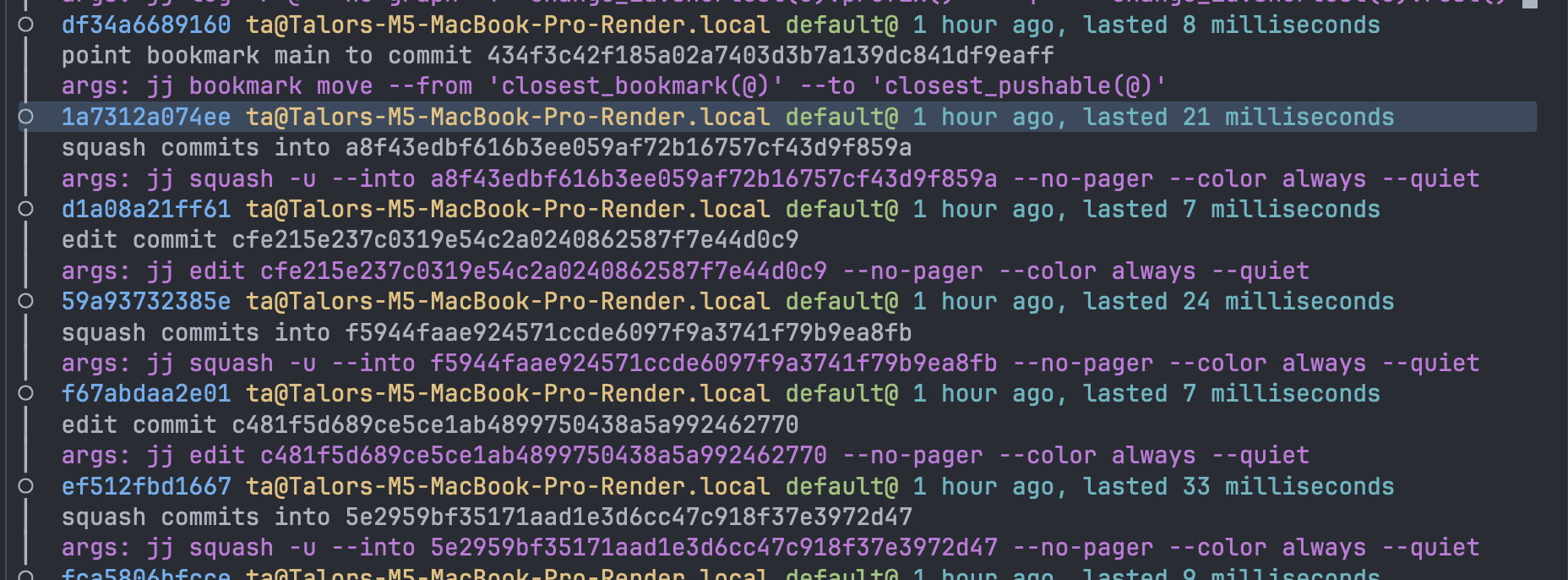
jj op restore <operation id> will rewind you back in history to the point at which an operation happened. To restore to the point before that, either copy the previous operation's id or use the - operator, which designates the previous operation: jj op restore 1a7312a074ee- restores to before 1a7312a074ee (the bad jj squash) happened.
Pull request integration
jj pr is a tool I've developed to author PRs and build PR stacks from jj. The source is on GitHub. It makes creating a PR this simple:
# make some changes....

touch foo

# describe them
jj desc -m "create foo integration"
jj new

# create a PR for the nearest change
jj pr

...

## PR Stack
- https://github.com/talor-a/some-repo/pull/31855
- https://github.com/talor-a/some-repo/pull/31843
- `main`
Shell integration
I recommend setting up a shell integration with jj, so that each time you open a terminal or a command finishes, you create a snapshot of the working copy. this keeps your running log up to date, but avoids creating unnecessary snapshots and prevents snapshots in the middle of other operations, such as a jj describe, which can cause conflicts.
I have a zsh prompt here you can borrow. install it to ~/.oh-my-zsh/custom/themes/talor.zsh-theme. it looks like this:


It prints the id of the current change, and shows the nearby bookmark if there is one. Mine is hacked together, there are likely other alternatives out there.
Agent hooks
Similar to a shell integration, it's useful to have jj snapshot each change an AI agent makes.
I also open up a fresh working state as soon as I send a prompt and as soon as the agent finishes working. This helps keep things clean: the agent always inherits a clean working state when I start a task, making it easy to revert without losing work, and I always end up on a clean state after the agent finishes, so that the agent's edits are fully self-contained into one jj change.
Here is the config I use for Claude to do this. It should port to other agents like Cursor, Codex, pi, etc without much difficulty.
you'll also want this alias set up in .config/jj/config.toml:
[aliases]
# ...
try-new = ["util", "exec", "--", "sh", "-c", """
if [ "$(jj log -r @ --no-graph -T empty)" = "false" ]; then
  jj new
else
  echo 'Current change is empty, not creating a new one'
fi
"""]
Conclusion
jj is a powerful tool but it can have a daunting learning curve. The tooling ecosystem around it is still developing, and so getting to a comfortable spot can be time consuming unless you're the type of person who likes to spend a lot of time tinkering.
Hopefully these tricks help you get up to speed more quickly. Cheers!